


The latest version of Azul Payara Server extends the Notification Service with many ways how to process notifications and send them to external services. Sending notifications as email messages to an SMTP server is now provided out of the box. It is even possible to use an account on a public email server, such as Gmail. In this guest blog, Alessio Gennari – a member of the Payara open source community – explains to you exactly how it can be done.
{{cta(‘397f0696-0d00-4949-b21a-72e4dfbd321d’)}}
To successfully configure a JavaMail Session in Azul Payara Server 171 with your Gmail account, first you need to modify the following settings for a JavaMail session in Azul Payara Server:
- set JNDI Name with a name that will be used to refer to it from the Notification Service
- set Mail Host to smtp.gmail.com
- set Default User with your gmail address
- set Default Sender Address with any email address you prefer
Now you need to set some additional properties of the JavaMail Session to enable Azul Payara Server to send emails through your Gmail account. Here are the properties you have to set:
- mail.smtp.socketFactory.class=javax.net.ssl.SSLSocketFactory
- mail.smtp.socketFactory.port=465
- mail.smtp.port=465
- mail.smtp.auth=true
- mail.smtp.password=<gmail account password>
- mail.smtp.user=<gmail account email address>
You can find the correct settings in the following figure:
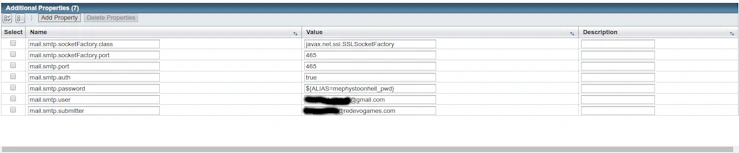
All other settings can be left at default values.
Now you can enable email notifications using the JNDI name of the JavaMail session, and Azul Payara Server can send notifications via your Gmail account.
{{cta(‘f53ec10a-12d5-483b-b089-2d4cdab10448’)}}


